05 Independent practical guide
Higgsfield motion control: transfer a performance.
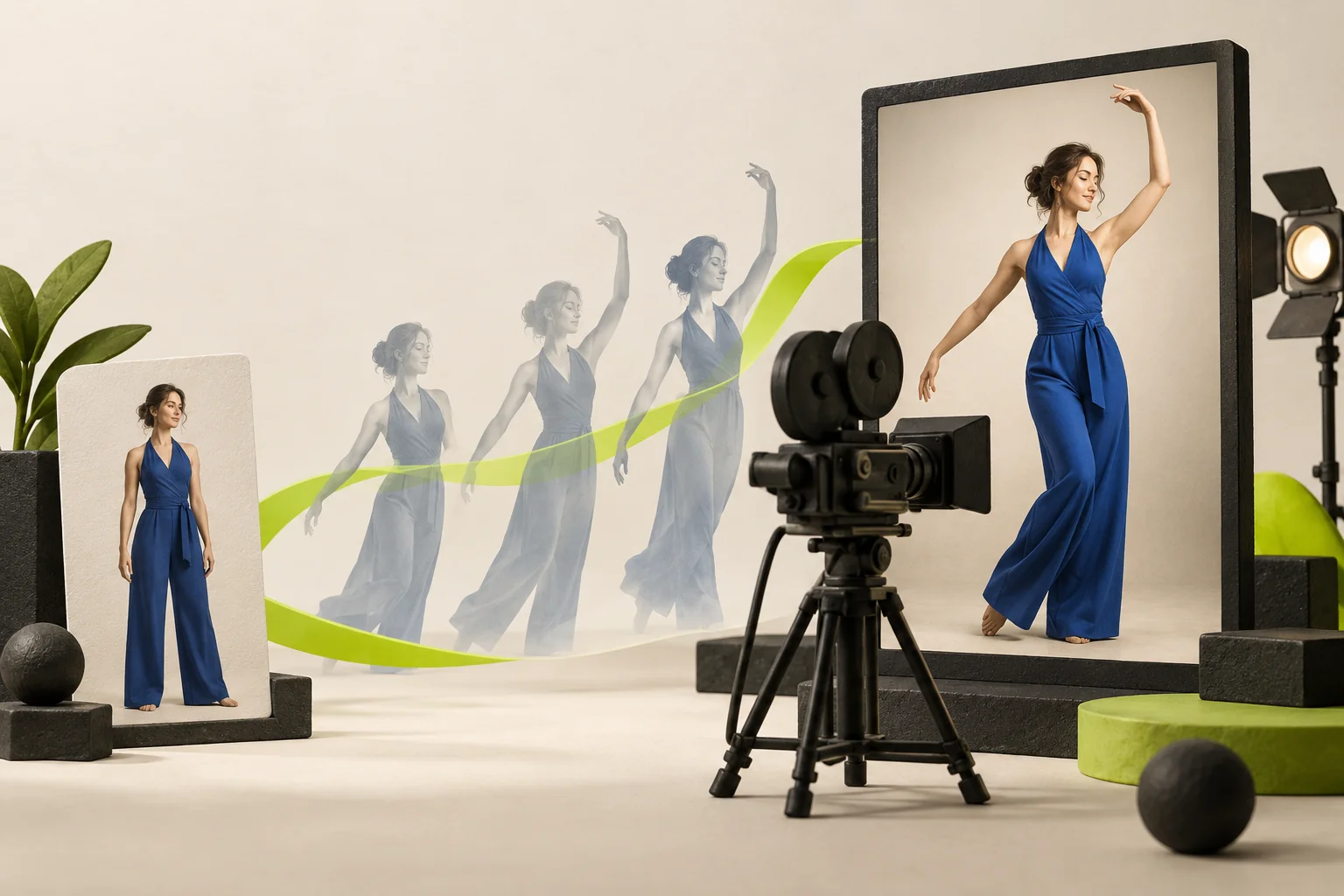
A camera push-in and a character copying a movement are different tasks. For performance transfer, you need a mode that accepts a driving video and a suitable subject image. This guide explains how to prepare those references, read model-specific limits and inspect the output. It does not claim a successful demonstration or universal motion-transfer support.
Quick answer
Use a supported performance-reference mode when you want a subject to follow movement from a clip. Check the required inputs, framing and duration in that mode. A camera instruction in a prompt does not replace a driving performance. Keep the intended body movement visible and inspect the result for identity changes, cropping and unintended camera motion.
Performance transfer is different from a camera cue
A performance reference supplies the movement you want the subject to follow. A camera cue describes how the viewpoint moves around or towards the scene. Both may affect a shot, but they answer different production questions.
Decide whether you need a recognisable gesture, dance or body action, or simply a change in viewpoint. For the latter, start with the prompt guide. For the former, find a mode that explicitly supports the required video and image inputs before preparing the whole project.
Check the selected mode before making references
Read the actual upload controls and help for the selected model. Supported clip length, aspect ratio, input order and output settings can differ. This guide does not assign one universal maximum duration or file specification to every motion-control tool.
Prepare a character image with the relevant body area clearly visible. Use a motion clip whose framing lets you inspect that same area throughout the action. A full-body movement and a tight portrait may be a poor starting match; check what the chosen mode expects.
- Verify that a driving video is a supported input.
- Match the visible body area to the intended action.
- Check the displayed cost after choosing the mode.
Inspect the reference clip before submitting it
Watch the whole reference for moments when the performer leaves the frame, limbs are hidden or another object crosses the body. These are useful points to flag for review; they are not proof that the model will fail in a specific way.
Choose a short, clear section for the first attempt. Avoid changing the crop halfway through the action unless that is part of the intended result. Keep the original clip so you can compare timing and framing with the generated version.
Make text and references describe the same shot
If the reference shows a subject stepping left, do not simultaneously ask for the subject to stay still. Keep the text focused on appearance and scene details that fit the supported reference workflow. Set other controls only when the chosen mode provides them.
For an unwanted camera change, compare the reference, prompt and available settings. There is no general rule that a particular slider is always present or always more accurate. Simplify the task and evaluate one change at a time.
Review motion and identity separately
Compare the timing and direction of the movement first. Then inspect face, clothing, limbs, scale and contact with nearby objects. A close match to the movement does not automatically mean the subject stayed recognisable.
Use the diagnosis table below to decide what to inspect next. Stop at your agreed attempt limit, keep earlier versions and mark the clip accepted only after watching it through. We have not run or scored a reference-transfer test for this page.
| Observation | Inspect | Next bounded change |
|---|---|---|
| Body leaves the frame | Compare reference crop and visible body area. | Try a shorter reference segment that stays in frame. |
| Face or clothing changes | Review appearance separately from movement. | Check the character input and simplify competing instructions. |
| Unexpected camera motion | Compare reference, prompt and supported camera controls. | Remove conflicting instructions and change one setting. |
| Poor hand or object contact | Inspect the point of contact and occlusion. | Start with a simpler action and judge the result again. |
Questions before you start
Is motion control the same as camera movement?
No. Performance transfer uses a reference movement for a subject. A camera cue changes the viewpoint. Check the exact meaning of the selected product mode.
Does every Higgsfield model accept a driving video?
Do not assume so. Check supported inputs and the official help for the mode you actually select.
Does good motion matching prove character consistency?
No. Review the movement and the subject’s appearance separately. This guide does not promise perfect identity or a successful result.
Official references
Sources and editorial limits
Product documentation checked on 3 October 2026. Prices, models and offers can change. We have not verified local checkout amounts or generated the examples as tests.
- Plans and free access
Official explanation of paid plans, Free access and the absence of a trial.
- How credits work
Credit expiry, top-ups and website versus automation limits.
- Current website plans
Check your current plan, billing period and checkout amount here.
- Higgsfield Academy
Official product tutorials. Controls and supported inputs vary by model.
- Separate developer API
API pricing is separate from website subscription pricing.
- Terms of use
Check the terms for your intended use and the rights to your inputs.